The deal desk, on the bank side
Three modules in the left rail make up the bank surface: Financing (files and portfolio), Collateral (the Collateral registry), and Third-party custody (the decision queue for stock releases, on the beneficiary's side).
4.1 The institution selector
Every bank screen requires an institution context — the "Institution" selector at the top of the page, remembered by the browser. Two distinct levels govern what you see and do:
- your platform role (FINANCEUR, RISK, FINANCE…) opens the surface;
- your space authorization (OPERATEUR, DECIDEUR…), assigned by the institution itself, governs what you can do there.
Without authorization, the screen says so in plain words.
4.2 The institution's KYB file
Before any access to bank screens, a real institution must submit its Know Your Business (KYB) file.
Financement → Dossier KYB.- Submit the four required documents: the regulator's authorization, the articles of association, the RCCM registration, and the director's identity document.
- Submit the file once all four documents are uploaded — the file moves to "submitted."
- Wait for the platform's compliance team to review it (see §6.3). A rejected file can be resubmitted.
- Once approved, the bank screens (files, facilities, borrowing-base policies) open up.
4.3 Received files (inbox)
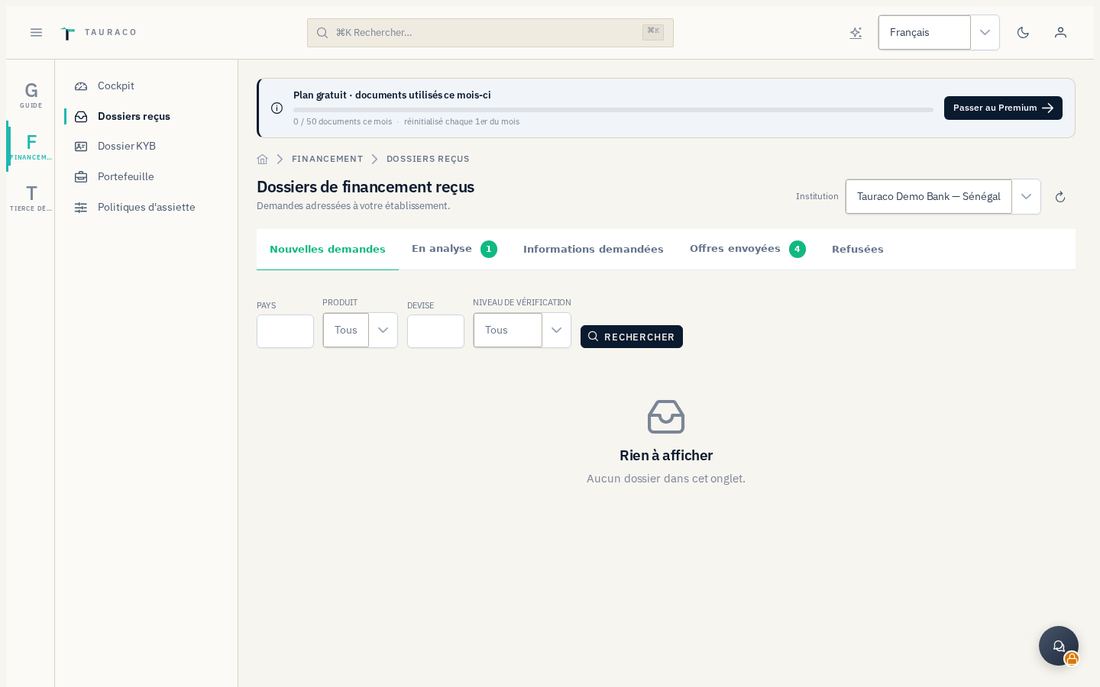
The inbox lists the requests addressed to your institution, and only to it, sortable and showing each file's age. Every file arrives documented: the invoice or asset, the activity history, the checks, the documents.
Financement → Dossiers reçus.- Filter by tab: new, under analysis, information requested, offers sent, rejected.
- Open a file to request additional information, set condition precedents, issue an offer, withdraw it, or note its acceptance.
Every action is recorded in the file's log.
4.4 The cockpit
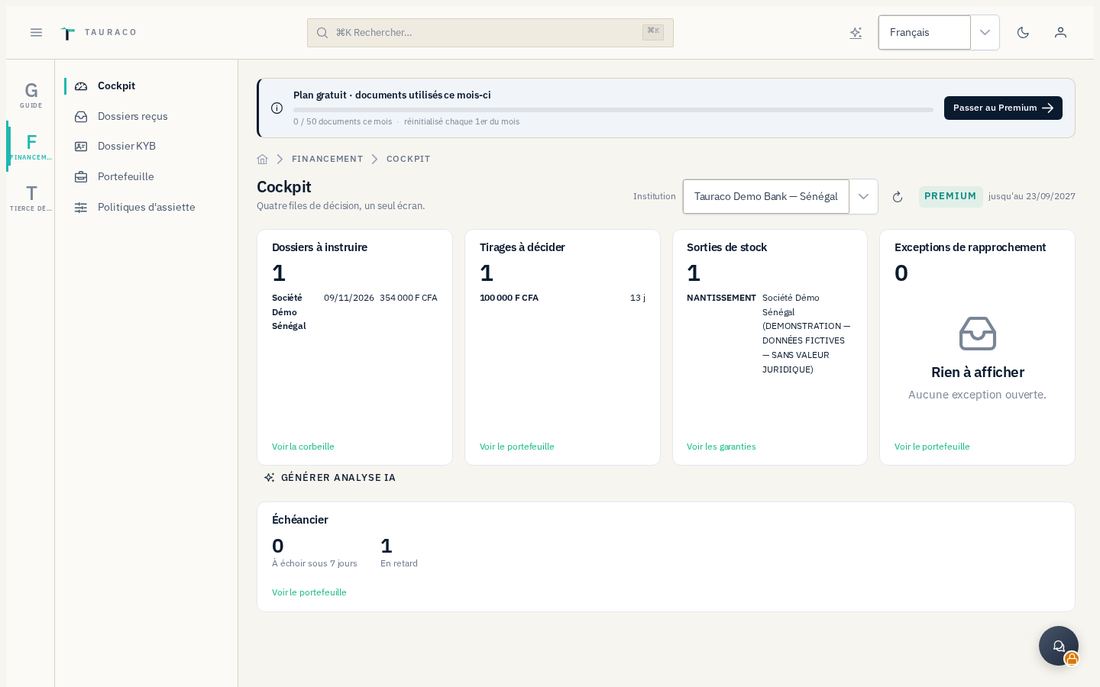
The cockpit (Financement → Cockpit) organizes what requires a decision into four queues: files, drawdowns, stock releases, exceptions. A repayment-schedule banner summarizes upcoming or overdue repayments.
The repayment schedule
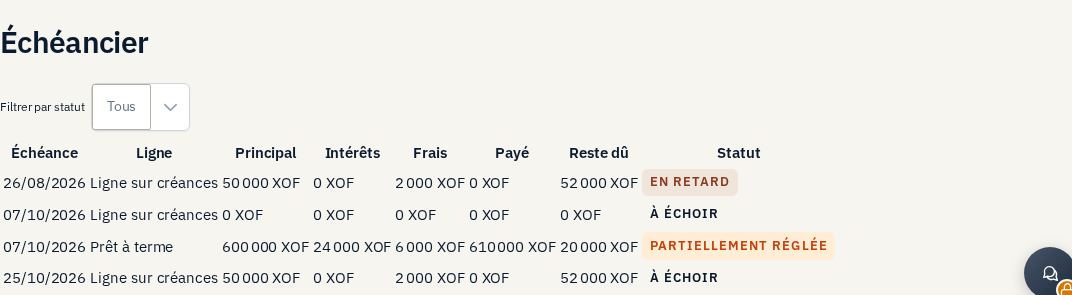
The portfolio's repayment-schedule section filters by status (upcoming, overdue…) and shows the severity of each overdue line.
4.5 The file: analysis, position, market ranges
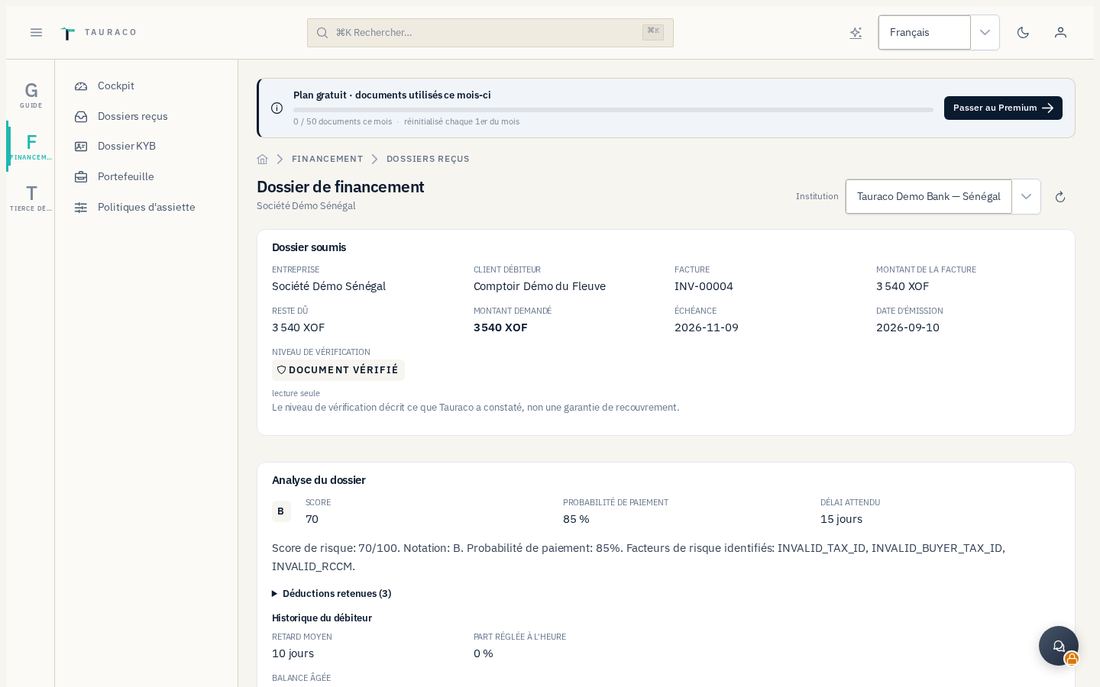
On a file, three panels inform the decision — they never make it in place of the analyst.
The analysis
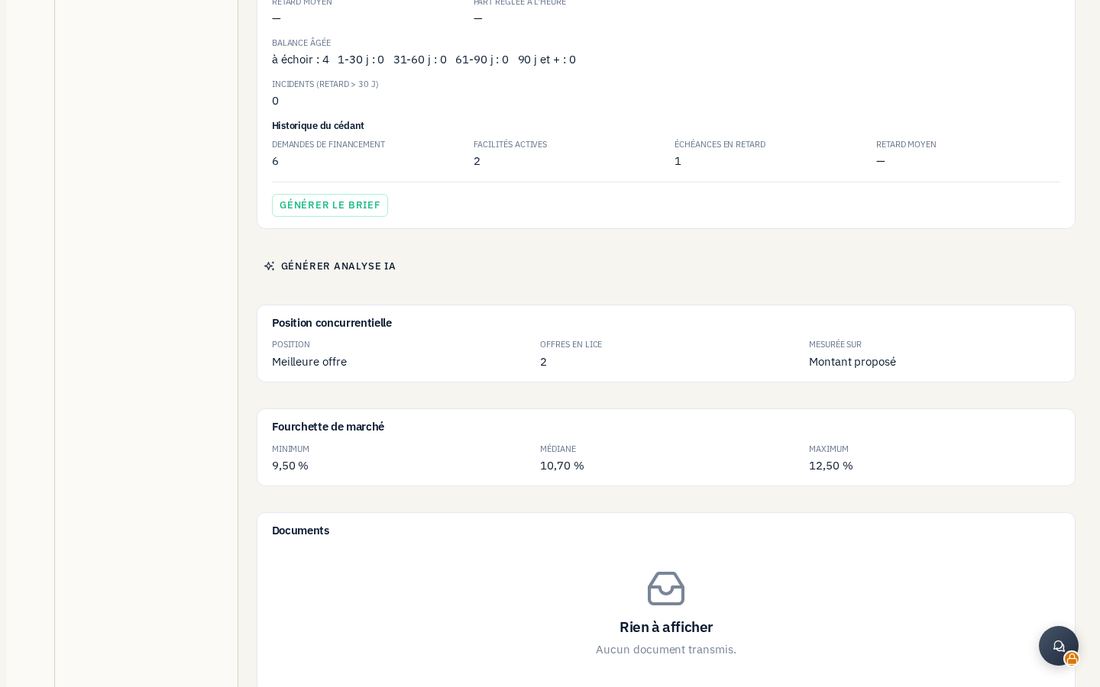
Grade, score, summary, and detail of the deductions, real payment history — the same transparency the company sees (§3.3). A button lets you generate a more detailed brief; it may be temporarily unavailable, which does not affect the file itself.
Competitive position
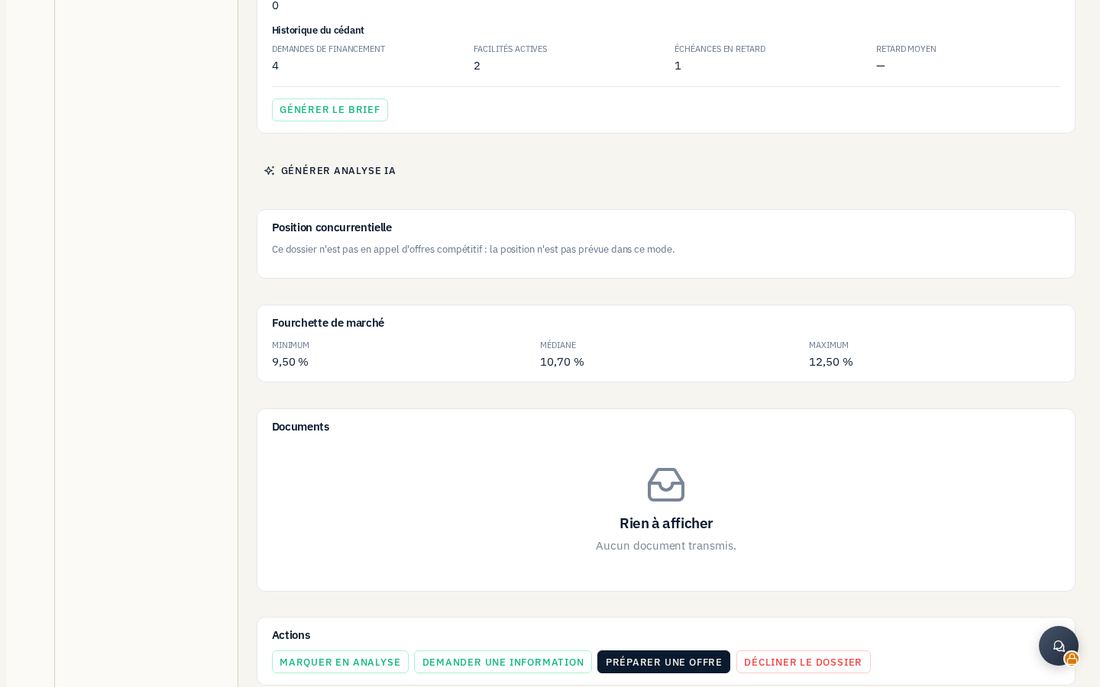
When several offers exist on the same file, an indicator situates yours (for example "best offer") without ever showing other institutions' conditions. When the data is unavailable or there is no competition on this file, the screen says so with its reason rather than displaying a made-up ranking.
Market ranges (benchmarks)
An anonymized range (minimum, median, maximum) built on a sufficient sample of comparable institutions — never fewer than three, so as to never make a single bank identifiable. Below this threshold, the screen shows "échantillon insuffisant" (insufficient sample).
4.6 Preparing and submitting an offer
- From the file, click « Préparer une offre » (Prepare an offer). No field is pre-filled: the platform suggests neither a rate nor a fee.
- Enter the amount, the term, the validity date, and any free-text conditions.
- Enter the structured conditions: the rate and its type, the advance rate, fees — and, if collateral is required, the asset concerned and the collateral regime.
- Save — the offer stays as a draft.
- « Soumettre l'offre » (Submit the offer) — visible only while the offer is a draft. It then moves to "submitted": the file switches, on the bank side, to "Offers sent," and on the company side, to "Offers received."
4.7 The portfolio: facilities and drawdowns to decide
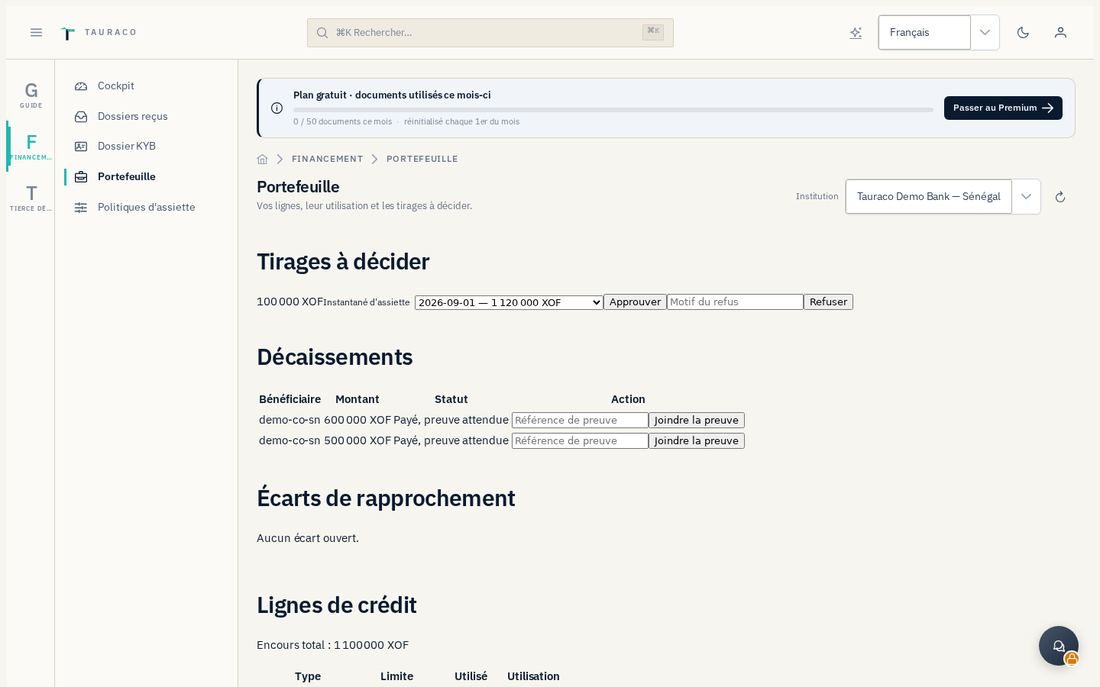
Financement → Portefeuille lists your active facilities: ceiling, outstanding balance, utilization, and drawdowns awaiting a decision.
- Open the section for drawdowns to decide.
- If the facility is backed by a borrowing base, choose the borrowing-base snapshot to base the decision on — never a figure silently recalculated.
- Approve or refuse. A refusal requires a reason, shown on both sides. A drawdown above the available borrowing base is refused automatically.
Disbursements and repayments are recorded from this same page; the append-only servicing register is authoritative — the position is derived from it.
4.8 Borrowing-base policies
Financement → Politiques d'assiette defines, by asset source and by currency, the haircut, the advance rate (two deliberately distinct settings), concentration limits, and explicit eligibility criteria (maximum count age, approved warehouses, third-party custody required or not).
- Open the existing policy or « Nouvelle version » (New version).
- Enter the eligibility fields, the haircut, and the advance rate.
- Publish. The new version becomes active; the old one closes and stays readable in the history.
The borrowing-base cascade on an inventory-backed facility
The facility's record shows the cascade: retained inventory value → after haircut → after advance rate → available borrowing base, each exclusion carrying its own reason.
- Open the facility, inventory borrowing-base section.
- Click « Calculer » (Calculate) — this action produces a new snapshot, never modifying the previous one.
- If the outstanding balance exceeds the borrowing base, open the deficiency panel: amount, cure deadline, and resolution tracking.
Designating a custodian and tracking stock releases
On the record of collateral involving inventory:
- « Désigner un tiers détenteur » (Designate a custodian) — this is the beneficiary's act, backed by the agreement as proof. The custodian then confirms receipt on its own side (§5).
- « Demander une sortie de stock » (Request a stock release) if you need to free part of the deposit — this is also the beneficiary's act.
- In the decision queue, authorize or refuse each release request you receive (a reason is required for a refusal, shown on both sides). Physical execution then belongs solely to the custodian, upon authorization.
4.9 Collateral
The Collateral registry is common to all asset classes (receivables, contracts, inventory, equipment…).
- Dashboard — what requires a decision today.
- Assets and Guarantees — the files, their dated events, and their evidence. A guarantee's record carries the legal statuses assessed rule by rule, each cited with its article of the Uniform Act and its review date; whatever is not yet resolved is shown "non évalué" (not assessed), never guessed.
- Alerts — 22 possible types (due dates, formalities, expired registration, negative field check, overdue inspection, insufficient borrowing base…), three severity levels, produced daily by the production scheduler. An alert is resolved by the fact that lifts it, never by deletion.
- Shared registry — the cross-lender projection of an asset: you see that a charge exists, by tranche, without ever seeing other institutions' amounts.
- Collateral agent, Journey (the nine timed steps of a file), Country preparation, Administration (reserved for the space's administration capability), and Cost estimate for formalities.
4.10 Standard / Premium subscription
Each institution has a subscription tier, assigned by the platform operator (§6.2). The Premium tier unlocks: a file's detailed analysis, competitive position, market ranges, and the four-queue cockpit with its AI-assisted analysis panel. Under Standard, these panels remain visible but locked, with a "Premium offer — contact Tauraco" message: there is never self-service navigation to a subscription for an institution.
4.11 AI-assisted analysis of the cockpit and the file
A natural-language analysis panel summarizes the cockpit or a file for the analyst, reserved for Premium institutions. If the analysis service is temporarily unavailable, the panel shows generic content with a banner that flags it — it is never empty or broken.