Collateral and third-party custody
The custodian is not a checkbox on a stock: it is an actor on the platform, with its own space, its own rights, its own receipts, its own inspections, and its own evidence.
5.1 The custodian context
At the top of the Third-party custody module's page, the "Dépositaire" (Custodian) field identifies your organization, with the « Agir pour ce dépositaire » (Act for this custodian) button. The server revalidates on every call that your organization is indeed qualified as a custodian and that you are authorized within it.
You only see the guarantees entrusted to you: those of another custodian are not just off-limits, they cannot be found at all.
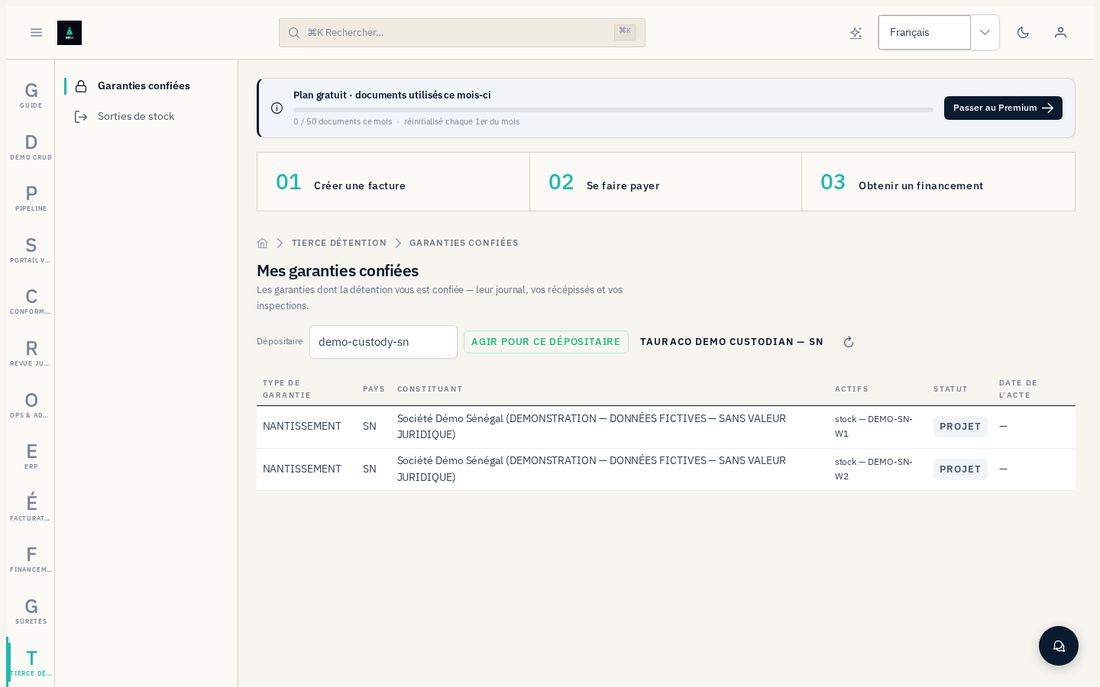
5.2 My entrusted guarantees
Tierce détention → Mes garanties confiées lists your deposits. A guarantee's record shows the file (collateral type, country, grantor, lots concerned — never the commercial documents, which stay with the titleholder) and the custody log: every dated act, with its proof.
Confirming receipt
- Open the guarantee designated in your favor.
- Click « Confirmer la réception » (Confirm receipt).
- Enter the effective date and the receipt number.
- Save — the receipt enters the custody log as proof.
Recording an inspection
- On the guarantee, click « Enregistrer une inspection » (Record an inspection).
- Choose the result: CONFORME (COMPLIANT) or NÉGATIF (NEGATIVE), with the report's reference.
- Save.
5.3 Stock releases
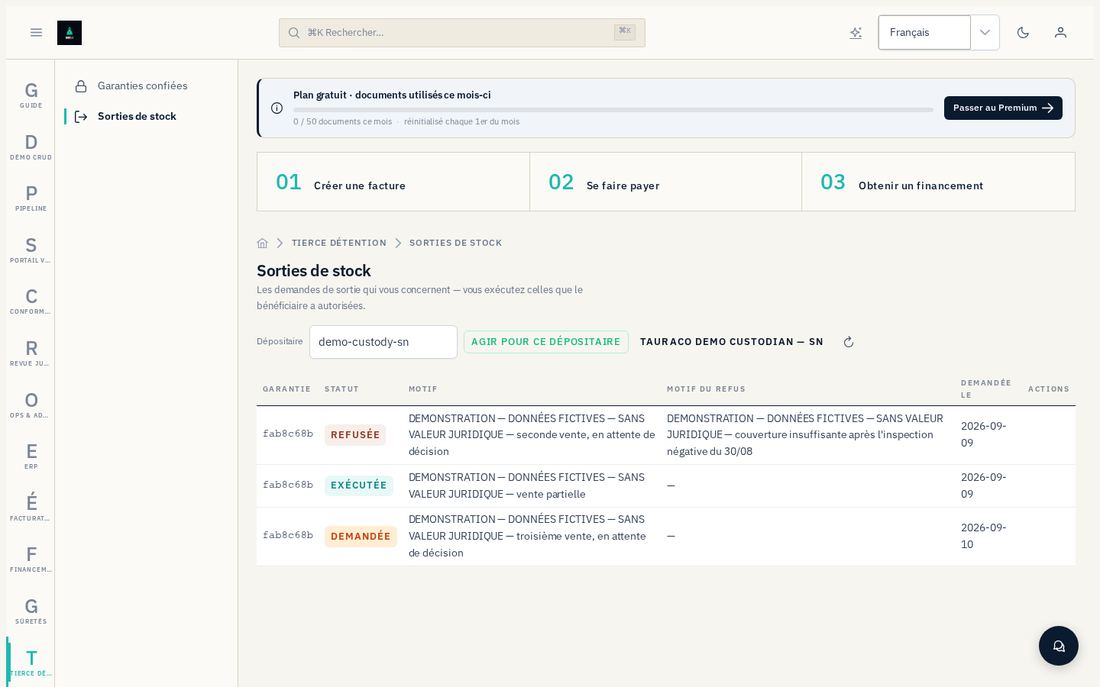
Tierce détention → Sorties lists the requests that concern you, each in one of these states:
- Demandée (Requested) — awaiting the beneficiary's decision; no action is offered to you at this stage, and an execution attempted anyway would be refused by naming the rule.
- Autorisée (Authorized) — yours to execute.
- Refusée (Refused) — the reason for refusal shows in its column.
- Exécutée (Executed) — the act and its release note are in the custody log.
Executing an authorized release
- Open the release with status "Autorisée" (Authorized).
- Click « Exécuter » (Execute).
- Enter the effective date and the release-note number — both are required.
- Save — the note enters the custody log as proof.
5.4 On the bank side: borrowing-base policies and snapshots
The borrowing-base policies that govern the valuation of inventory pledged as collateral, the versioned snapshots that date each calculation, and the deficiencies they open, are described from the institution's point of view in §4.8 — it is the same mechanism, read here from the custodian's side: every snapshot you feed through your counts and your inspections directly feeds this calculation.
5.5 Alerts
The 22 alert types of the Collateral registry (§4.9) also cover third-party custody: overdue inspection, negative field check, insufficient borrowing base… They appear on the institution's side and are always resolved by the fact that lifts them — a compliant inspection, a recalculated snapshot, a settled deficiency — never by deletion.