Subscription, entitlements and Founders programme
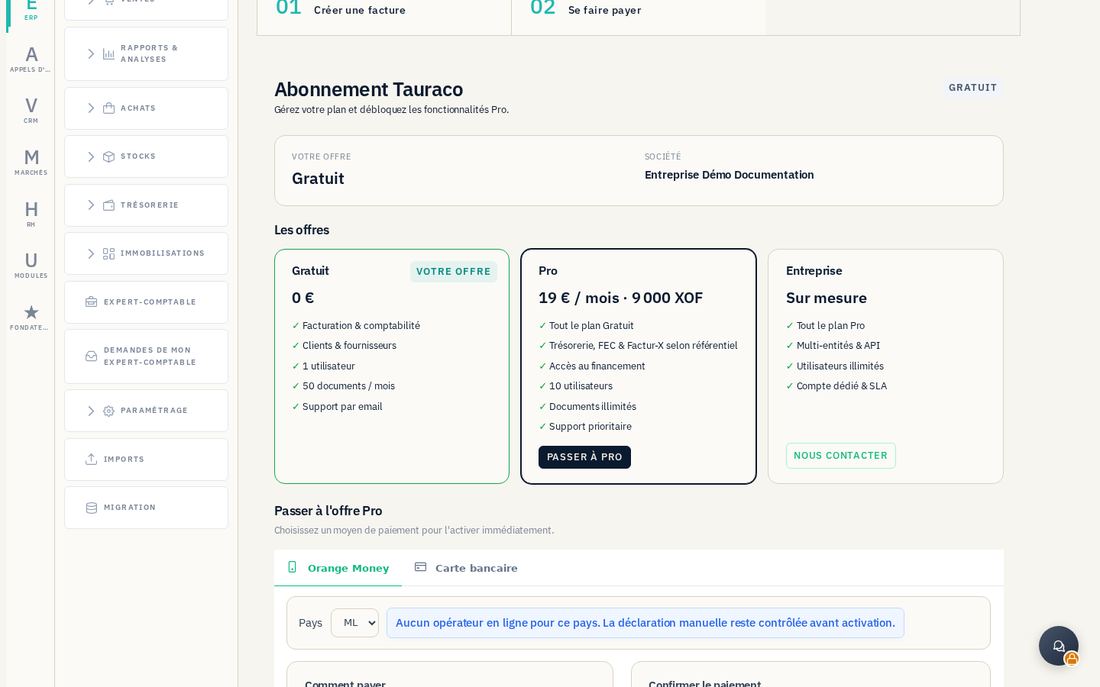
15.1 Review your plan
Check the Abonnement screen in your ERP workspace for the applicable plan, limits, entitlements and displayed dates. Review the prices and any promotional terms shown before subscribing. An administrator grants collaborators access, as explained in chapter 8.
Plan entitlements, personal permissions and enabled modules can produce different results. If a function remains inaccessible, note the exact message and have these elements checked; do not assume that changing a role extends a subscription or activates a promotion.
15.2 Apply to the Founders programme
The Founders programme offers the ERP's Pro plan for the campaign duration (365 days) to the first 100 verified companies, with no bank card and no billing under the programme. It is for company accounts: an accounting firm cannot access it. Only an administrator of the company can apply.
- On the public page
https://tauraco.io/fondateurs, read the offer, its terms and the number of seats left. Créer mon compte (Create my account) opens sign-up; if you already have an account, Déposer ma candidature (Submit my application) opens the programme workspace in the application. - To sign up, choose Gérer mon entreprise (Manage my business) or Financer mes factures (Finance my invoices), then open the verification link received by e-mail and click Se connecter (Sign in): after sign-in, the application takes you back to the Programme fondateurs (Founders programme) workspace, even if you open the link on another device. If it has expired, Renvoyer (Resend) requests a new one; if it was already used, your address is verified: sign in.
- Once signed in, open
Fondateurs → Programme fondateurs(/fondateurs). The ERP dashboard also shows the Programme fondateurs panel when your company can apply: seats left, plan duration and a Découvrir et candidater (Learn more and apply) link. You can hide this invitation; it does not come back on this browser. - The company's identity (company name, country, legal identifier) is taken from your company profile. Use Compléter ma fiche société (Complete my company profile) if the workspace asks for it, add your motivation, phone, website, sector and headcount if you wish, accept the terms, then click Envoyer ma candidature (Send my application). An e-mail acknowledges receipt: at this stage, nothing is activated and your subscription is not changed.
- Track your application in the workspace (Candidature en cours d'examen, Application under review). On the dashboard, the panel then offers Suivre ma candidature (Track my application).
If the workspace shows Candidature impossible pour le moment (Applying is not possible right now), read the reasons given: applications closed or no seats left, a current subscription (with its end date if it has one), an incomplete company profile, a country not covered by the programme, an application already under review, an offer already granted to the company, or an account that is not a company administrator.
15.3 Approval, rejection and expiry
The Tauraco team verifies each company before deciding: approval is a manual decision, neither immediate nor automatic.
- Approval. The Pro plan is activated in your company's ERP for the campaign duration (365 days) and an e-mail confirms its end date. The workspace shows "Your founders Pro plan is active until …", with the days left.
- Rejection. The reason is sent to you by e-mail and remains displayed in the workspace. A new application is possible if your company becomes eligible again and seats remain.
- Withdrawal. The Tauraco team can withdraw a granted entitlement; the workspace shows "Your founders entitlement was withdrawn" and its reason. In the ERP, the subscription returns to its state before the grant only if it is still exactly the one set by the programme; a subscription purchased or changed since is kept.
- Expiry. An e-mail warns you 30 days and then 7 days before the end. At expiry, a final e-mail confirms it: the entitlements offered end with no billing; without another active subscription, your account returns to the free plan and your data is kept.
PREMIUM is the Pro plan, ENTERPRISE the Enterprise plan and TRIAL a trial period. If your company has a current subscription when the application is approved, nothing changes for you: your subscription keeps its terms and the application stays under review until the team decides.
15.4 Process applications (platform administration)
This screen is reserved for platform administration (SUPER_ADMIN role): Fondateurs → Revue des candidatures (/fondateurs/admin), or the Revue des candidatures (Application review) button in the Founders programme workspace. It recalls the grant rule and shows the Places attribuées (Seats taken), À examiner (To review), Droits actifs (Active entitlements), Signalées (Flagged), Échéances à 30 jours (Ending within 30 days) and Conversion en abonnement (Conversion to subscription, not measured) counters.
- Find applications. The Candidatures (Applications) tab opens on the À examiner (To review) status. In the Statut (Status) filter, each status is followed by its number of applications and Toutes (All) by the total. An empty list says so with the total ("No application to process · 0 in total"); Voir toutes les candidatures (Show all applications) appears when other statuses contain some.
- Approve. Check the company (identity, country, legal identifier, abuse signals shown), then click Approuver (Approve): the dialog announces that the Pro plan will be activated for the campaign duration in the company's ERP, followed by a confirmation e-mail. Approuver et activer (Approve and activate) confirms. On success, the screen shows "Pro plan applied in …'s ERP until …".
- Reject. Refuser (Reject) asks for a Motif (Reason, 3 to 500 characters), e-mailed to the applicant. An application that is already approved is not rejected: revoke its entitlement.
- Revoke. In the Droits (Entitlements) tab, click Révoquer (Revoke) for an active entitlement and give a reason. The message states the actual effect in the ERP: subscription restored to the free plan, or left as it is because it has changed since the grant, the entitlement had already expired, or it is a historical entitlement with no grant in the ERP.
- Configure the campaign. The Campagne (Campaign) tab holds the name, number of seats, entitlement duration (1 to 400 days), eligible countries and the Campagne active (Campaign active) state.
When an action does not succeed, the message explains why:
| Message | What happened | What to do |
|---|---|---|
| "Activation refused: … already has a current subscription" | The current subscription (plan and end date shown) is not touched; no seat is taken and the application remains to be reviewed. | Reject the application with a reason. |
| "Activation refused: this account is not a company account" | The programme applies only to company accounts. | Reject the application with a reason. |
| "Activation refused: the offer granted to this application was already withdrawn in the ERP" | A withdrawn grant is not applied a second time. | Reject the application with a reason. |
| "Activation refused: the ERP has already recorded this application's grant, but the company's subscription has changed since" | During an earlier attempt left without a response, the ERP recorded the grant; the subscription has changed since: nothing is activated. | Reject the application: the rejection withdraws this grant in the ERP. |
| "The ERP did not confirm…", "The response did not arrive…", "… was not recorded here" | The operation was not confirmed or not recorded. | Retry: the operation is picked up, never done twice. |
| "The ERP refused the operation for your session" | The session lacks ERP administration rights; nothing was changed. | Sign in again with an authorised account; retrying changes nothing. |
| Campaign closed, no seats left, offer already granted to the company, application already approved or rejected, entitlement already revoked | The decision is not possible in the current state; the list is refreshed. | Reload the list; reject with a reason an application that cannot succeed. |